> ## Documentation Index
> Fetch the complete documentation index at: https://docs.skarmy.ai/llms.txt
> Use this file to discover all available pages before exploring further.
# Connect your apps
> Connect Gmail, Stripe, Notion, Slack, and dozens of other tools to your company, then ask Skarmy to work across them in chat.
The **Apps** page connects Skarmy to the tools you already use. Once an app is connected, you can ask the coach to work it in plain language — `check my calendar for tomorrow`, `draft a reply to that Stripe email` — one action at a time.
## Before you start
Browsing is open to everyone; **connecting an app requires an account.**
## The catalog
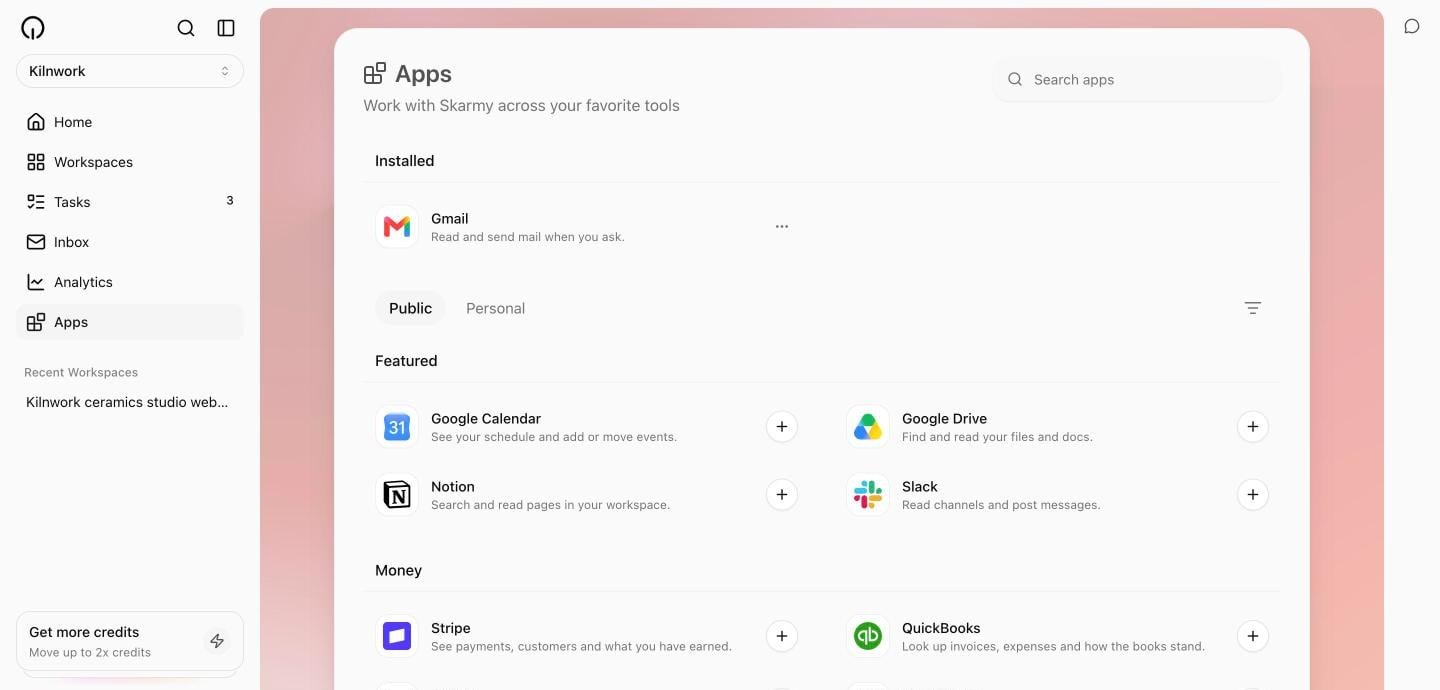
Select **Apps** in the sidebar. You get a search box, a category filter, and each category laid out with one row per app. Connected apps gather in an **Installed** strip at the top.
 | Category | Apps |
| ------------------ | ----------------------------------------------------------------------------- |
| **Featured** | Gmail, Google Calendar, Google Drive, Notion, Slack |
| **Money** | Stripe, QuickBooks, Square, FreshBooks |
| **Customers** | HubSpot, Salesforce, Attio, Intercom, Zendesk |
| **Marketing** | Mailchimp, Kit, Google Ads, Google Analytics, Google Search Console, Typeform |
| **Social** | LinkedIn, Instagram, Facebook, YouTube, Reddit |
| **Files and docs** | Google Docs, Google Sheets, Dropbox, Airtable, Canva, Figma |
| **Plan and track** | Trello, Asana, ClickUp, Todoist, Linear |
| **Meetings** | Zoom, Google Meet, Calendly |
| **Team** | Discord, Microsoft Teams, WhatsApp |
## Connect an app
Select its row, or the **+** on the row. The app's detail page shows what it is, what Skarmy can do in it, and a connect button.
Before connecting, the app's **skills** — the individual actions Skarmy can take in it — are listed with checkboxes. Untick anything you would rather keep off.
Connecting sends you to the tool's own sign-in to grant access, then back to Skarmy.
**Expected result:** the app appears in the **Installed** strip.
## Use a connected app
Just ask, in any chat with the coach:
```text theme={null}
What's on my calendar tomorrow?
```
```text theme={null}
Find the invoice email from last week and summarise it.
```
Skarmy searches the app's skills, runs the one action that fits, and reports what it did. The Builder can use connected apps too — most usefully **Stripe**: it can create a real payment link in your own Stripe account and put it on your site, so you can take money the day you publish.
## Manage a connected app
The row's **⋯** menu offers **Chat** (start a conversation about this app), **Manage** (its detail page), and **Uninstall**. On the detail page you can flip individual skills on and off at any time — a switched-off skill simply refuses until you turn it back on.
## What Skarmy will never do in your apps
The short version: it reads freely when you ask, acts only when you ask, deletes never. The full rules are on [App permissions](/company/app-permissions).
## Verify
* The app shows in the **Installed** strip.
* Asking the coach something that needs the app produces a real answer from your data.
* A skill you switched off is refused when you ask for it.
## Troubleshooting
| Problem | Fix |
| ---------------------------------- | ------------------------------------------------------------------------------------------------------------------------ |
| Every app shows as unavailable | App connections are not switched on in this environment yet. |
| Skarmy refuses an action | The skill may be switched off — check the app's detail page — or the action is one Skarmy never performs, like deleting. |
| The connection stopped working | Uninstall and reconnect — the tool's authorization may have expired. |
| You want an app that is not listed | The catalog is growing. Tell support which tool you need. |
## Next
Exactly what Skarmy may and may not do in a connected app.
Put connected apps to work on a schedule.
| Category | Apps |
| ------------------ | ----------------------------------------------------------------------------- |
| **Featured** | Gmail, Google Calendar, Google Drive, Notion, Slack |
| **Money** | Stripe, QuickBooks, Square, FreshBooks |
| **Customers** | HubSpot, Salesforce, Attio, Intercom, Zendesk |
| **Marketing** | Mailchimp, Kit, Google Ads, Google Analytics, Google Search Console, Typeform |
| **Social** | LinkedIn, Instagram, Facebook, YouTube, Reddit |
| **Files and docs** | Google Docs, Google Sheets, Dropbox, Airtable, Canva, Figma |
| **Plan and track** | Trello, Asana, ClickUp, Todoist, Linear |
| **Meetings** | Zoom, Google Meet, Calendly |
| **Team** | Discord, Microsoft Teams, WhatsApp |
## Connect an app
Select its row, or the **+** on the row. The app's detail page shows what it is, what Skarmy can do in it, and a connect button.
Before connecting, the app's **skills** — the individual actions Skarmy can take in it — are listed with checkboxes. Untick anything you would rather keep off.
Connecting sends you to the tool's own sign-in to grant access, then back to Skarmy.
**Expected result:** the app appears in the **Installed** strip.
## Use a connected app
Just ask, in any chat with the coach:
```text theme={null}
What's on my calendar tomorrow?
```
```text theme={null}
Find the invoice email from last week and summarise it.
```
Skarmy searches the app's skills, runs the one action that fits, and reports what it did. The Builder can use connected apps too — most usefully **Stripe**: it can create a real payment link in your own Stripe account and put it on your site, so you can take money the day you publish.
## Manage a connected app
The row's **⋯** menu offers **Chat** (start a conversation about this app), **Manage** (its detail page), and **Uninstall**. On the detail page you can flip individual skills on and off at any time — a switched-off skill simply refuses until you turn it back on.
## What Skarmy will never do in your apps
The short version: it reads freely when you ask, acts only when you ask, deletes never. The full rules are on [App permissions](/company/app-permissions).
## Verify
* The app shows in the **Installed** strip.
* Asking the coach something that needs the app produces a real answer from your data.
* A skill you switched off is refused when you ask for it.
## Troubleshooting
| Problem | Fix |
| ---------------------------------- | ------------------------------------------------------------------------------------------------------------------------ |
| Every app shows as unavailable | App connections are not switched on in this environment yet. |
| Skarmy refuses an action | The skill may be switched off — check the app's detail page — or the action is one Skarmy never performs, like deleting. |
| The connection stopped working | Uninstall and reconnect — the tool's authorization may have expired. |
| You want an app that is not listed | The catalog is growing. Tell support which tool you need. |
## Next
Exactly what Skarmy may and may not do in a connected app.
Put connected apps to work on a schedule.