

Before you start
You need a workspace with an accepted handoff. See Describe your idea. If you started as a guest, this is where Skarmy asks you to create an account — everything you have done carries over.The workspace
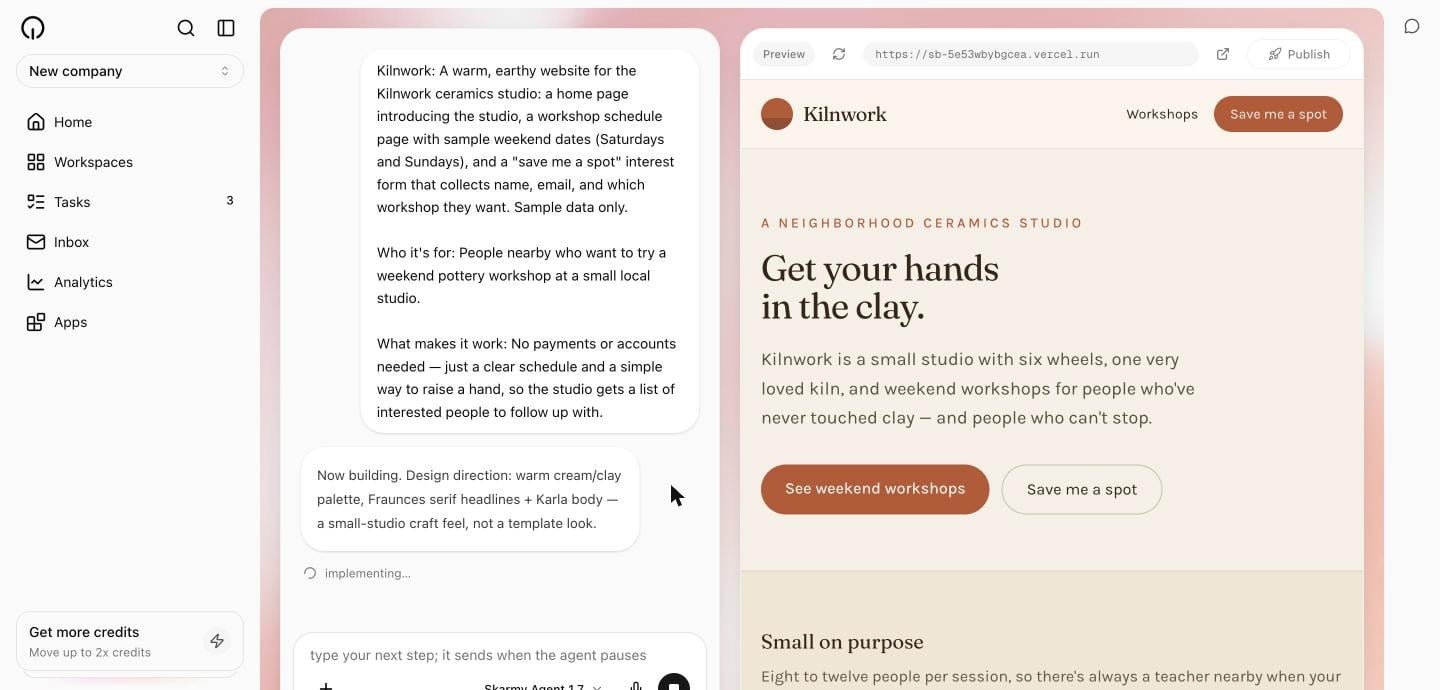
The workspace has two halves:- Left — the conversation. Your messages, the Builder’s progress, and any questions it asks.
- Right — the preview. Your app, running live. See Read the live preview.
Ask for a change
Type what you want in the composer — its placeholder readswhat should we do next? — and send it. Write it the way you would ask a colleague.
What to expect for different sizes of change
While the Builder is busy
You can keep typing. The composer stays open mid-run — its placeholder changes totype your next step; it sends when the agent pauses — and your message goes out the moment the current step stops. A Stop control appears in place of Send if you want to interrupt instead.
Answer the Builder’s questions
When a choice would genuinely change what gets built, the Builder asks one focused question with two or three concrete options. It appears as a card in the conversation. Pick an option and select Send answer. The Builder continues from your answer.The Builder never asks you about technical choices — frameworks, libraries, file structure. Those are its decisions. A question from the Builder is always a product question.
Watch progress
The conversation shows what is happening as it happens — short status lines likethinking…, implementing…, researching…, and publishing… — and a founder-facing summary at each completed milestone. That summary names what is on the page and suggests what to do next.
Stop a run
Select Stop while the Builder is working to interrupt it. Stopping is safe. It does not undo work already done, and your next message picks up from there. To have it carry on, send:Start over
If you want to scrap the current direction entirely, select Start fresh. It appears once a session has ended. Start fresh archives the current conversation and begins a new one on your next message.Pick a model and speed
The chat bar carries a model picker. Skarmy Agent 1.7 is the default and the right choice most of the time; Ultra, Normal, and Lite trade capability against cost. A separate Speed control offers Fast — up to about 2.5× faster output at a higher price — on the tiers that support it. If you never touch either, you get sensible defaults.Paste material in
You can paste business plans, competitor copy, customer feedback, or documents into the conversation, and attach up to five files per message — images, PDFs, text, spreadsheets. The Builder uses them as material for copy and structure.Come back later
Sessions are resumable. Close the tab, come back tomorrow, and the conversation and your app are still there. Your ten most recent workspaces sit in the sidebar under Recent Workspaces. The machine running your app sleeps between turns to save credits. When you return, the preview may saythis session is asleep — select Wake preview or just send your next message.
Verify
- The change you asked for is visible in the preview.
- The conversation contains the Builder’s summary of what it did.
- The composer placeholder is back to
what should we do next?when the Builder has finished.
Troubleshooting
Next
Read the live preview
What each preview message means.
Find your files
Everything the Builder has written.
Publish your site
Put it on a public address.