

Before you start
- A completed build. The Builder must have finished at least one milestone.
- A real account. Guests can talk to the coach, but publishing requires signing up.
- Enough credits to cover the publish fee. See How credits work.
Publish for the first time
1
Select Publish
Select Publish at the top of the workspace. Its tooltip reads Publishes your last completed milestone.
2
Name your site
A dialog opens titled Name your site. Type into the field; your address is that name plus 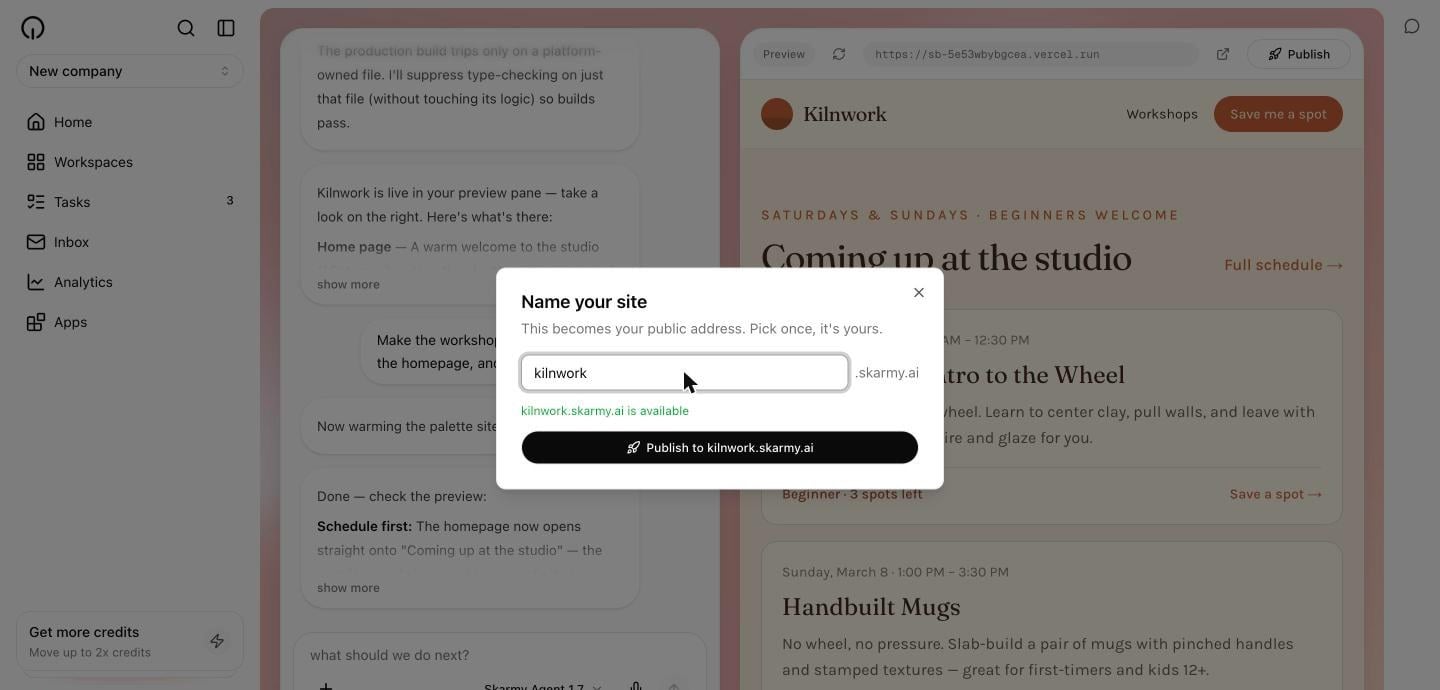
.skarmy.ai.The hint under the field checks availability as you type:3
Review and approve
A dialog titled Review before publishing shows exactly what you are agreeing to: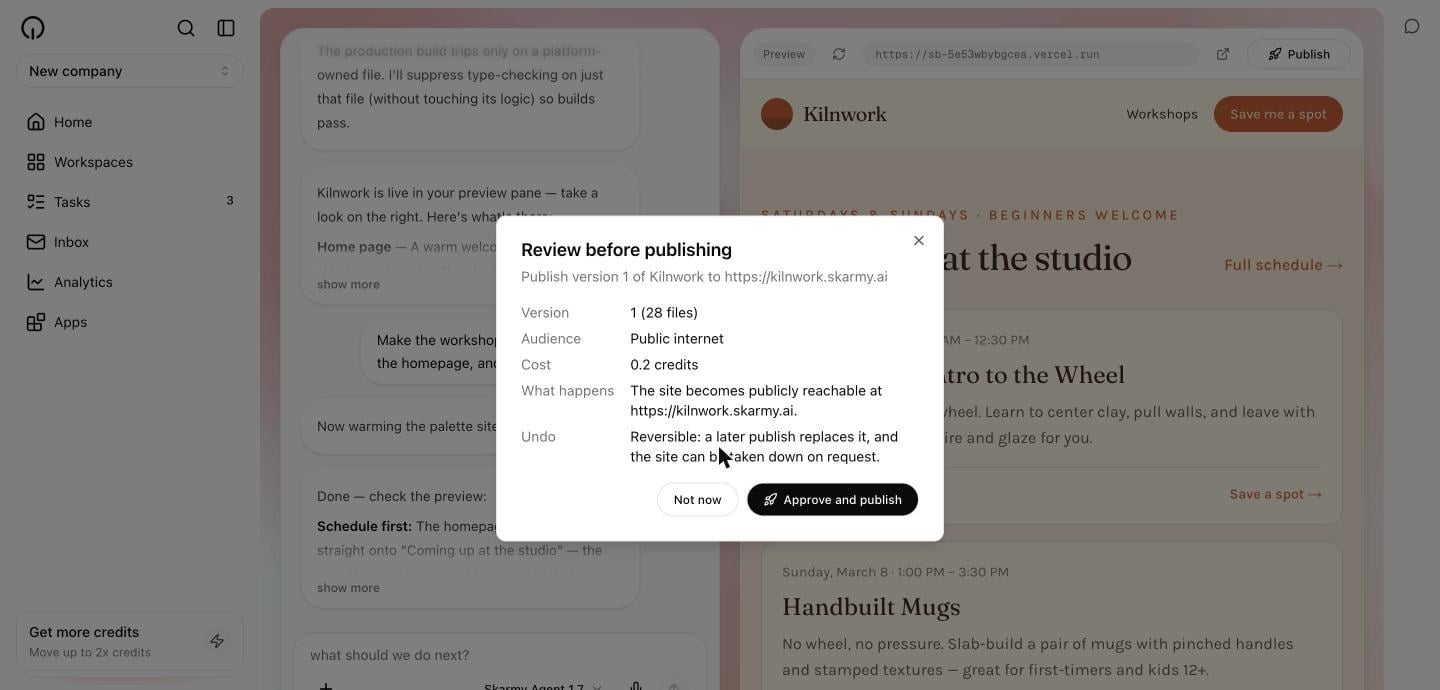
4
Wait for it to go live
Deployment takes a few minutes. You can keep working, and you can reload the page — the deployment carries on either way. Skarmy does not announce the address until the site actually serves.Expected result: a Live at yourname.skarmy.ai link appears next to the Publish button.
5
Open your site
Select the link. It opens in a new tab.Expected result: your site loads at its public address.
What gets published
Publishing deploys the last completed milestone, not whatever the Builder is doing right now. If it is mid-change, publishing ships the last finished state. Your published site is a snapshot. It does not update when your preview updates. To refresh it, see Update a published site.Ask the Builder to publish
You can also just say so:The Builder only publishes work that passed its own checks. If a publish fails, it tells you rather than reporting success.
Verify
- A Live at … link appears beside the Publish button.
- Opening it in a private or incognito window loads your site — proving it is genuinely public.
- The site matches your last completed milestone.
Troubleshooting
Signed out or using a guest session? Publishing prompts you to create an account first. Everything you have built is kept.
Next
Site addresses
Naming rules and reserved names.
Update a published site
Ship your latest changes.